































MIFOTRA Application Form Not Working? Fix It (2026)
Learn how to fix MIFOTRA application problems in Rwanda, including registration, login, confirmation, profile, Apply Now and recruitment portal errors in 2026.


MIFOTRA Application Form Not Working? Fix Registration, Login & Application Problems in Rwanda (2026)
Last updated: September 2026
Are you trying to apply for a government job in Rwanda but the MIFOTRA application form is not working? You may be unable to register, receive a confirmation message, log in, complete your profile, open a vacancy, or click the Apply Now button.
These problems can happen at different stages of the Rwanda Civil Service Recruitment Portal. The correct solution depends on exactly where the application process stops.
In this guide, you will learn how to troubleshoot common MIFOTRA recruitment problems, including registration errors, login problems, incomplete profiles, missing vacancies, application errors, mobile-browser problems, and confirmation issues.
Quick fix:
If the MIFOTRA application form is not working, first make sure you are using the official recruitment portal. Then check whether you already have an account, complete all required profile information, confirm that the vacancy is still open, and try an updated browser or another device. If the problem continues, contact the recruitment support team using the official support details.
Table of Contents
- Why Is the MIFOTRA Application Form Not Working?
- Official MIFOTRA Recruitment Portal
- MIFOTRA Registration Not Working
- MIFOTRA Registration Confirmation Not Received
- Registered but Cannot Log In
- MIFOTRA Password or Account Access Problems
- MIFOTRA Profile Cannot Be Completed
- Mandatory Profile Information
- MIFOTRA Apply Now Button Not Working
- MIFOTRA Job Vacancy Disappeared
- MIFOTRA Application Form Error
- MIFOTRA Application Not Working on Phone
- Browser and Internet Troubleshooting
- Should You Create a New MIFOTRA Account?
- How to Check Your MIFOTRA Application
- What If the Application Deadline Is Near?
- MIFOTRA Recruitment Support Contacts
- Information to Give MIFOTRA Support
- Common MIFOTRA Application Mistakes
- MIFOTRA Troubleshooting Checklist
- Frequently Asked Questions
Why Is the MIFOTRA Application Form Not Working?
There are several possible reasons why you may be unable to complete a MIFOTRA job application.
The problem could be related to your recruitment account, incomplete profile information, your browser, your internet connection, your device, or the status of the vacancy itself.
The first step is therefore to identify where the application process stops.
| Problem | What to check first |
|---|---|
| Cannot register | Whether an account already exists and whether the registration form was submitted correctly |
| No confirmation | Email inbox, spam folder and account access |
| Cannot log in | Login details and account recovery |
| Cannot complete profile | Required profile sections and missing information |
| Apply Now does nothing | Profile completion, vacancy status and browser |
| Vacancy disappeared | Application closing date |
| Technical error | Error message, browser, device and internet connection |
What Is the Official MIFOTRA Recruitment Portal?
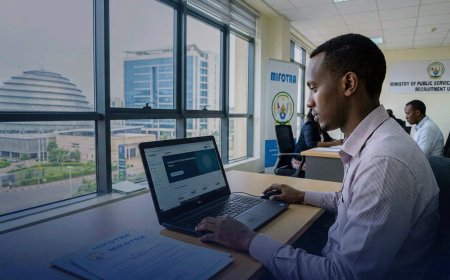
The Rwanda Civil Service Recruitment Portal is the online platform used for public-service job vacancies and online applications in Rwanda.
MIFOTRA identifies the Rwanda Civil Service Recruitment Portal as a service through which users can find public-service jobs and apply online.
Always verify that you are using the official recruitment website before entering your personal information.
Open the Official Rwanda Civil Service Recruitment Portal
The recruitment process is generally organized around these stages:
- Registration – create your recruitment account.
- Login – access your account.
- Profile completion – enter and update your information.
- Job application – review an available vacancy and select Apply Now.
Before applying, applicants should carefully read the vacancy's job description, job profile, qualifications and required skills.
MIFOTRA Registration Not Working
If the MIFOTRA registration form refuses to submit, keeps loading, displays an error, or appears to do nothing after you click the registration button, avoid repeatedly submitting the same form.
1. Open the official recruitment portal
Start from the official MIFOTRA recruitment portal instead of an old bookmark or an unfamiliar third-party link.
2. Check whether you already registered
If you previously attempted registration, first determine whether an account may already exist. Try accessing the login page before creating another account.
3. Check the information you entered
Review the registration fields carefully and make sure the required information has been entered correctly.
4. Try an updated browser
If the form does not behave correctly, try an updated version of Chrome, Firefox, Edge or another modern browser.
5. Try another device
If possible, test the registration process on another phone or computer. This can help determine whether the problem is specific to your device.
If registration continues to fail across different browsers and devices, save a screenshot of the error and contact recruitment support.
MIFOTRA Registration Confirmation Not Received
Another common concern is registering successfully but not seeing the expected confirmation message or email.
Before creating another account, check the following:
- Check your email inbox.
- Check your spam, junk or promotions folders.
- Verify that the email address entered during registration was correct.
- Try logging into the recruitment portal.
- If you can access your account, continue with your profile instead of registering again.
- If you cannot access the account, use the available account-recovery option.
- Contact recruitment support if you still cannot access the account.
Registered but Cannot Log In
If you successfully registered but cannot access your account, troubleshoot the login separately from the registration process.
Check your login details
Make sure you are entering the credentials associated with the account you originally created. Pay attention to capitalization, spelling and accidental spaces.
Check your password
When using a phone, automatic password filling can sometimes insert an outdated or incorrect password. If necessary, enter the password manually.
Use the password recovery option
If you no longer remember your password, use the account's available password-reset or recovery process instead of repeatedly entering incorrect credentials.
Try another browser
If the credentials are correct but the login page continues to fail, test the account using another updated browser.
MIFOTRA Password or Account Access Problems
If you cannot access an existing recruitment account, avoid immediately creating another profile.
First try the available account-recovery process. If recovery does not work, contact recruitment support and explain that you are unable to access an existing account.
When contacting support, provide enough information for them to identify the account, but never disclose your password.
MIFOTRA Profile Cannot Be Completed
Creating a recruitment account is not the same as completing a job application.
After registration and login, you may need to complete your recruitment profile before you can proceed with a vacancy application.
If you can log in but cannot continue to the application stage, review your profile carefully for incomplete or mandatory sections.
Which MIFOTRA Profile Information Is Mandatory?
The current recruitment portal specifically identifies Higher Education, Languages and References as mandatory profile sections.
| Profile section | What to check |
|---|---|
| Higher Education | Complete the required education information accurately. |
| Languages | Provide the required language information. |
| References | Complete the required reference information. |
If one of these sections is incomplete, complete it before assuming that the Apply Now button or vacancy page is broken.
MIFOTRA Apply Now Button Not Working
If you can see a job vacancy but the Apply Now button does not work, check these items in order:
- Make sure you are logged in.
- Make sure your profile is complete.
- Review the job description.
- Check the qualifications and required skills.
- Check whether the vacancy is still open.
- Refresh the page once.
- Try another browser.
- Try another device if available.
A visible vacancy does not necessarily mean that applications are still being accepted. Always check the vacancy's closing date.
Why Did a MIFOTRA Job Vacancy Disappear?
If a vacancy you previously viewed is no longer available, the first thing to check is its application deadline.
The recruitment portal displays vacancy information including posting dates and application deadlines. Once the closing date has passed, a vacancy may no longer accept new applications.
Therefore, a missing Apply Now option does not automatically mean that your account or phone is malfunctioning.
MIFOTRA Application Form Shows an Error
If you receive an error while completing your application, first record exactly what the portal says.
Then work through these steps:
- Read the complete error message.
- Take a screenshot.
- Note the page or section where the error appeared.
- Refresh the page once.
- Log out and log in again if necessary.
- Try another browser.
- Try another device.
- Try another internet connection.
Do not repeatedly click the same button if the page is not responding. Repeated submissions may make it harder to determine what happened.
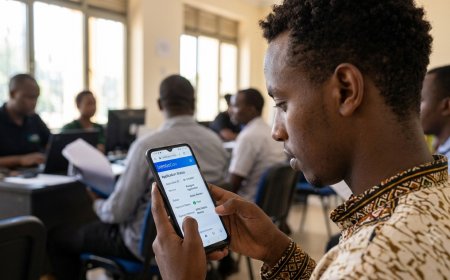
MIFOTRA Application Not Working on Phone
Many applicants access online services from smartphones. If the recruitment portal is not working correctly on your phone, try the following:
- Update your browser.
- Use a stable internet connection.
- Close unnecessary browser tabs.
- Reload the recruitment page.
- Try mobile data if Wi-Fi is unstable.
- Try Wi-Fi if mobile data is unstable.
- Open the portal in a private/incognito browser window.
- Try another phone or computer if available.
If the portal works correctly on another device, the issue may be related to the original browser, device or cached session.
Browser and Internet Troubleshooting
Testing the same action in a different environment is one of the simplest ways to identify where the problem is occurring.
| Test | Purpose |
|---|---|
| Incognito/private window | Helps rule out some cached-session or browser-data problems. |
| Different browser | Shows whether the issue is browser-specific. |
| Different device | Helps distinguish device problems from account problems. |
| Different connection | Helps identify connection-related problems. |
Should You Create a New MIFOTRA Account?
Do not make a new account your first troubleshooting step.
If you have already registered, first determine whether your original account exists and whether you can access it.
Creating additional accounts can make it difficult to determine which profile contains your information or which account was used for a particular application.
If you cannot access your original account, use the available recovery process or contact recruitment support for assistance.
How to Check Whether You Actually Applied for a MIFOTRA Job
There is an important difference between opening or viewing a vacancy and successfully submitting an application.
The recruitment workflow requires applicants to complete their profile and then proceed with the application through the vacancy page.
After applying, keep a record of important application information whenever it is displayed by the system.
Keep a record of:
- Job title
- Recruiting institution
- Application or reference information
- Date of application
- Confirmation information
- Relevant email notifications
- Screenshots of important confirmation pages
The recruitment portal also indicates that applicants receive an email notification about their application status once shortlisting has been completed.
What If the MIFOTRA Application Deadline Is Near?
If you encounter a technical problem shortly before a vacancy closes, start troubleshooting immediately rather than waiting until the final minutes.
- Confirm that the vacancy is still open.
- Complete any missing profile information.
- Try another browser.
- Try another device.
- Check your internet connection.
- Take screenshots of the problem.
- Record the exact error message.
- Contact recruitment support if the problem continues.
How to Contact MIFOTRA Recruitment Support
If you have completed the basic troubleshooting steps and still cannot register, log in or submit an application, contact the recruitment support team using the contact information currently published on the official recruitment portal.
Rwanda Civil Service Recruitment Portal Support
Phone: 9997
WhatsApp: 0785569363
The recruitment portal identifies the WhatsApp contact for recruitment inquiries.
For general MIFOTRA inquiries, the ministry's contact information also includes 0785569165 and info@mifotra.gov.rw.
Visit the Official MIFOTRA Contact Page
What Information Should You Send to MIFOTRA Support?
A support request is more useful when it explains exactly what happened. Instead of writing only “MIFOTRA is not working,” provide the relevant details.
Where appropriate, include:
- Your full name
- The email address or login identifier associated with the account
- The job title
- The recruiting institution
- The page where the problem occurred
- The exact error message
- The approximate date and time
- Your phone or computer type
- The browser you were using
- A screenshot of the problem
Common MIFOTRA Application Mistakes
| Common mistake | What to do instead |
|---|---|
| Creating several accounts | Try accessing or recovering the original account first. |
| Leaving mandatory profile sections incomplete | Complete the required information before applying. |
| Ignoring job requirements | Read the job description, profile and required skills. |
| Using an unofficial website | Use the official Rwanda Civil Service Recruitment Portal. |
| Repeatedly clicking a non-responsive button | Refresh once and test another browser or device. |
| Ignoring the vacancy deadline | Check the closing date before troubleshooting further. |
| Sharing your password | Keep your login credentials private. |
MIFOTRA Application Troubleshooting Checklist
Use this checklist before contacting recruitment support:
☐ I am using the official Rwanda Civil Service Recruitment Portal.
☐ I checked whether I already have an account.
☐ I can access my account or have tried account recovery.
☐ My recruitment profile is complete.
☐ Higher Education information is completed.
☐ Languages information is completed.
☐ References information is completed.
☐ I checked the vacancy requirements.
☐ I checked the vacancy closing date.
☐ I refreshed the page.
☐ I tried another browser.
☐ I tried another device if possible.
☐ I tried another internet connection.
☐ I recorded the exact error message.
☐ I took a screenshot of the problem.
☐ I have the official recruitment support contacts available.
When Should You Contact MIFOTRA Recruitment Support?
Basic troubleshooting can resolve many browser, device and account-access problems. However, contact recruitment support when the problem continues after reasonable troubleshooting.
Support may be appropriate when:
- You cannot access an existing account.
- Account recovery does not work.
- The same error occurs on different browsers or devices.
- Your profile appears complete but you cannot proceed.
- A vacancy appears open but the application process consistently fails.
- You need clarification about an application that cannot be resolved through the portal.
Frequently Asked Questions About MIFOTRA Applications
Why is the MIFOTRA application form not working?
The cause can vary. Check your account, profile completion, vacancy status, browser, device and internet connection. If the problem continues across different environments, contact recruitment support.
Why can't I apply after creating a MIFOTRA account?
Creating an account is only one stage of the recruitment process. You also need to log in, complete the required profile information and proceed through the vacancy application process.
What if I registered but did not receive a confirmation?
Check your inbox and spam folder, then try accessing your account before creating another registration. If you cannot access the account, use the available recovery process or contact recruitment support.
Should I create another MIFOTRA account?
Do not make this your first solution. First check whether your existing account can be accessed or recovered.
Why is the Apply Now button not working?
Check that you are logged in, your profile is complete, the vacancy is still open and your browser is working correctly. You can also test another browser or device.
What MIFOTRA profile fields are mandatory?
The current recruitment portal specifically identifies Higher Education, Languages and References as mandatory profile sections.
What is the MIFOTRA recruitment support number?
The recruitment portal currently lists 9997 for support and 0785569363 on WhatsApp for recruitment inquiries.
How do I know if my MIFOTRA application was submitted?
Check the result of the application process inside your recruitment account and keep any confirmation or reference information displayed by the system. The portal also indicates that applicants receive an email notification about their application status once shortlisting has been completed.
Why did a MIFOTRA vacancy disappear?
Check the vacancy's closing date. A position may stop accepting applications after its stated deadline.
Can I apply for MIFOTRA jobs using a phone?
The recruitment portal can be accessed online from a phone. If a particular section does not work correctly, try an updated browser, another connection or a computer.
Official MIFOTRA Resources
Related Fyndin Guides
- How to Apply for Government Jobs in Rwanda Online: MIFOTRA Guide
- Rwanda Civil Service Recruitment Portal 2026: How to Apply
- How to Create an Account on Rwanda Civil Service Recruitment Portal
Final Takeaway
If the MIFOTRA application form is not working, do not immediately assume that your account or application has failed. First identify the stage where the problem occurs.
For registration problems, check whether an account was already created. For login problems, use the available recovery process. If you cannot proceed after logging in, review your profile and mandatory information. If the Apply Now button does not work, check the vacancy status, requirements and closing date. For technical errors, test another browser, device or internet connection.
Avoid creating unnecessary duplicate accounts and never share your password.
If the problem remains after basic troubleshooting, contact the recruitment support team using the contact details currently published on the official portal: 9997 or 0785569363 via WhatsApp.
For the latest vacancies, requirements and application instructions, always verify the information directly through the official Rwanda Civil Service Recruitment Portal before submitting your application.
What's Your Reaction?
 Like
0
Like
0
 Dislike
0
Dislike
0
 Love
0
Love
0
 Funny
0
Funny
0
 Angry
0
Angry
0
 Sad
0
Sad
0
 Wow
0
Wow
0