







How to Free Up Storage Space on Android
Learn how to free up storage on an Android phone by removing unnecessary files, clearing cache, managing apps, and moving important data.

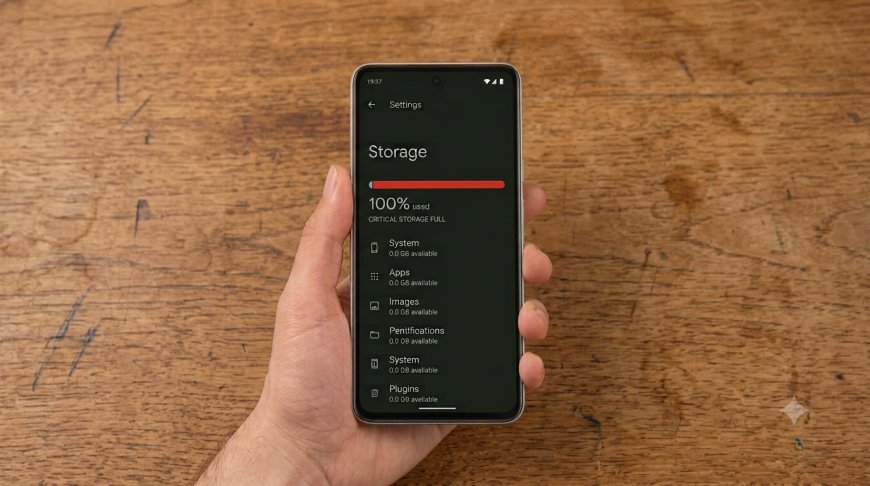
A phone that's constantly warning "Storage Almost Full" slows down, struggles to update, and stops you from saving new photos or installing apps. The good news is you can usually recover several gigabytes without buying extra storage or deleting anything important. This guide walks through exactly how to check what's using your space and clear it out safely on Android.
Check What's Using Storage
Before deleting anything, see where your space is actually going:
- Open your phone's Settings app
- Tap Storage (on Samsung devices, this may be under Battery and Device Care → Storage)
- You'll see a breakdown of what's using space — usually Photos, Videos, Apps, Audio, and System Data
This breakdown tells you where to focus. If Photos and Videos dominate, start there. If a specific app is unusually large, that's your next stop.
Delete Unnecessary Apps
Unused apps take up space even if you never open them:
- Go to Settings → Apps
- Sort or scroll to find apps you no longer use
- Tap the app, then select Uninstall
You can also check the Google Play Store under Profile → Manage apps → Unused apps for a list of apps you haven't opened in a while. If you're not ready to fully delete an app, many Android versions let you archive it instead — this removes most of the app's data while keeping the icon, so you can reinstall it quickly later.
Clear App Cache
Cache files build up over time and can quietly consume several gigabytes without you noticing:
- Go to Settings → Apps
- Tap the app you want to clear (WhatsApp, Instagram, and browsers are common large offenders)
- Tap Storage, then Clear Cache
Clearing cache is safe — it doesn't delete your logins, settings, or personal data, though the app may load slightly slower the first time afterward as it rebuilds. Clearing cache on your most-used apps can often free up several gigabytes.
Remove Large Files
Downloaded files, old PDFs, and forgotten media often pile up unnoticed:
- Open the Files app (Files by Google is pre-installed on most Android phones)
- Look for a "Clean" or "Free up space" section, which suggests junk files, duplicates, old screenshots, and large files
- Review the suggestions and delete what you don't need
Manage WhatsApp Media
WhatsApp is one of the biggest hidden storage users due to auto-downloaded photos, videos, and voice notes:
- Open WhatsApp, go to Settings → Storage and Data → Manage Storage
- Review items sorted by size, including forwarded media and large files
- Select and delete media you no longer need
You can also turn off auto-download for photos and videos under WhatsApp's data settings to prevent this from building up again.
Move Photos and Videos
Photos and videos are usually the single biggest cause of low storage. Instead of deleting them, move them:
- Back them up to Google Photos, then remove the local copies once you confirm they're safely backed up (look for "Backed up" status, not just "Uploading")
- Transfer them to a computer or external storage if you prefer not to rely on cloud backup
Use Cloud Storage
Cloud storage lets you keep your files accessible without taking up local space:
- Google Drive — 15GB free
- OneDrive — 5GB free
- Dropbox — 2GB free
Once files are backed up to the cloud, they can typically be removed from your device and downloaded again whenever you need them.
What Not to Delete
- System files — Never manually delete files from system folders; this can cause instability or break your phone
- App data you're unsure about — If you're not sure what a file does, don't delete it — search it first
- Recent downloads you haven't reviewed — Check before bulk-deleting the Downloads folder
Deleted files often move to a Trash or Recently Deleted folder first — remember to empty that too, since files sitting in Trash still count against your storage until permanently removed.
Prevent Storage Problems
- Turn on automatic photo backup so new photos don't keep piling up locally
- Periodically clear app cache instead of waiting until storage is critically low
- Turn off auto-download for media in WhatsApp and similar apps
- Enable "archive unused apps" if your Android version supports it
- Aim to keep at least 10–15% of your total storage free — Android needs breathing room for updates and temporary files, and running consistently near-full can cause slowdowns
What's Your Reaction?
 Like
0
Like
0
 Dislike
0
Dislike
0
 Love
0
Love
0
 Funny
0
Funny
0
 Angry
0
Angry
0
 Sad
0
Sad
0
 Wow
0
Wow
0